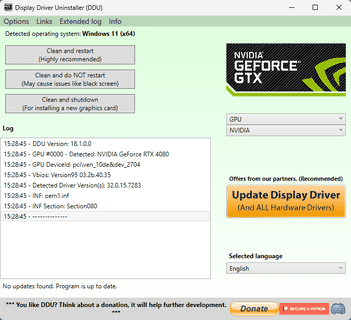
Display Driver Uninstaller is a Windows utility that completely removes AMD, NVIDIA, and Intel graphics drivers and all associated leftovers: registry keys, driver store components, folders, files, and vendor-specific caches. Standard uninstallers and Windows Control Panel removal often leave these remnants behind, which can cause driver install failures, crashes, black screens, and conflicts—especially when switching GPU brands.
Use DDU when the standard uninstall fails, when you are switching from one GPU vendor to another (e.g. AMD to NVIDIA), or when troubleshooting driver-related issues such as install errors, freezes, black screens, or performance drops. After running DDU, you get a clean driver environment similar to a fresh Windows install; you then install your new driver manually.
Fix driver-related crashes, black screens, and performance issues; clean install before major driver updates.
PC Technicians
Resolve install failures and conflicts quickly without reinstalling Windows.
IT Admins & System Builders
Standardize clean driver deployments and troubleshoot problematic machines.
Power Users
Switch GPU brands or perform deep cleanup when vendor tools are insufficient.
Standard Uninstaller vs Display Driver Uninstaller (DDU)
Standard Windows or vendor uninstallers remove basic driver files but often leave registry entries, driver store data, and caches. DDU is specialized for deep GPU driver cleanup. Generic uninstallers are not designed for driver store or graphics-driver leftovers; DDU targets exactly that.
Feature
Standard / Vendor Uninstaller
DDU
Removes active driver files
Yes
Yes
Cleans registry leftovers
No
Yes
Removes driver store components
No
Yes
Clears cache / shader leftovers
No
Yes
Safe Mode operation
No
Yes (recommended)
Removes vendor services / profiles
No
Yes
Best for GPU brand switching
No
Yes
Troubleshooting install failures / crashes
Limited
Yes
Explore more
Features
Full feature breakdown: deep driver removal, Safe Mode, portable use, brand-coverage support, and product UI.
DDU is intended for legitimate troubleshooting and clean driver installs. We recommend creating a system restore point or backup before use and running DDU in Safe Mode for maximum stability. The tool is not affiliated with AMD, NVIDIA, or Intel; those vendors are not responsible for its use.
Downloads should be obtained from the official source (Wagnardsoft) or trusted mirrors. Verify integrity using checksums (e.g. SHA-256) when the developer publishes them to ensure the file has not been altered.
A detailed breakdown of what DDU does and why it matters for clean GPU driver removal and troubleshooting.
1
Deep Removal of GPU Drivers (AMD, NVIDIA, Intel)
DDU completely uninstalls graphics drivers from all three major vendors. It targets the same components that a full driver stack uses: kernel drivers, user-mode components, and installer footprints. Why it matters: Incomplete removal leaves remnants that can cause install failures, crashes, or conflicts when switching GPUs or updating drivers.
2
Removes Leftovers: Registry, Folders/Files, Driver Store
Beyond the main driver files, DDU removes registry keys, leftover folders and files, and driver store components that standard uninstallers leave behind. Why it matters: These leftovers are a common cause of "driver install failed" errors and unstable behavior after driver updates or GPU swaps.
3
Safe Mode Recommended Workflow
Running DDU in Safe Mode prevents active driver services and other software from locking files or interfering with cleanup. Why it matters: In normal mode, in-use drivers can block complete removal; Safe Mode gives DDU full access for a thorough cleanup. See How to boot into Safe Mode and recommended workflow.
4
System Restore Point / Backup
DDU encourages or supports creating a system restore point before cleanup. Why it matters: Deep registry and driver store changes are reversible via restore point if something goes wrong or you need to roll back.
5
Portable Utility — No Installation
DDU is portable and lightweight: extract to a folder on a local drive and run. No installer, no system-wide installation. Why it matters: You can run it from a USB or desktop folder; just avoid running from network drives. Reduces footprint and simplifies use in Safe Mode.
6
Clean and Restart / Clean and Shutdown
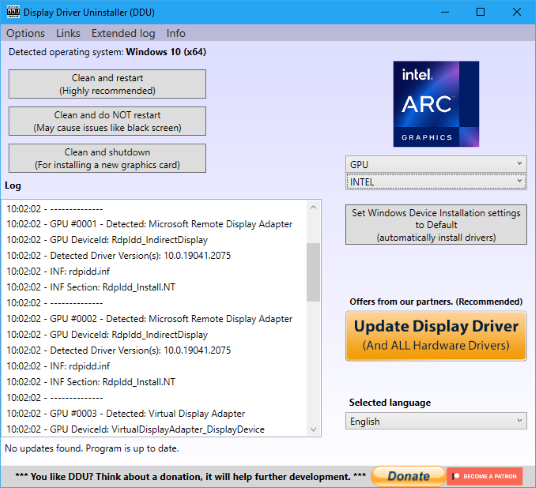
Clean and restart removes the selected GPU drivers and reboots the PC. Best for single-GPU systems when you want to reinstall the same or updated driver. Clean and shutdown removes drivers and shuts down the system—use this when you plan to physically swap the GPU (e.g. AMD ↔ NVIDIA) so you can power off, change hardware, then boot and install the new vendor's driver.
7
Vendor Services & Profile Remnants
DDU removes vendor-specific services and profile/settings remnants (e.g. NVIDIA/AMD control panel data). Why it matters: Old profiles and services can conflict with a fresh driver install; removing them avoids odd behavior or duplicate entries.
8
Resolve Driver-Related Issues
DDU helps resolve install failures, crashes, black screens, and performance drops when they are caused by corrupted or conflicting driver leftovers. Why it matters: Many "driver install failed" or blank-display-step issues are fixed by a full cleanup followed by a clean driver install.
9
Basic Realtek Audio Driver Cleanup
DDU includes basic support for cleaning Realtek audio drivers where applicable. This is secondary to the main GPU focus; use it only when you need to remove Realtek audio leftovers in line with the tool's options.
10
Multilingual Support
DDU offers multiple languages so users can run the utility in their preferred language, improving accessibility and reducing mistakes.
Product UI
Technical Reference — Registry & Commands
DDU performs deep cleanup of graphics driver components. The following are examples of the types of registry keys and Windows commands relevant to display driver removal. This documentation is for technical and search reference; DDU automates these operations when you run it.
DDU may temporarily change this to prevent Windows Update from reinstalling drivers during cleanup. You can restore it via DDU's option to set Windows automatic driver installation to default.
List driver packages (PowerShell — for verification)
pnputil /enum-drivers
Run in an elevated PowerShell to list installed driver packages. DDU removes display-related packages from the driver store as part of cleanup.
Some security software may flag installer-like tools; exclude the DDU folder and verify checksums.
Source Transparency
Display Driver Uninstaller is developed by Wagnard (Wagnardsoft). It is not affiliated with AMD, NVIDIA, or Intel. Those companies did not create or endorse this tool and should not be held responsible for its use.
Always obtain DDU from the official source (Wagnardsoft website or official forum download link) or from trusted mirrors that are widely recognized by the community. Avoid unknown or unofficial sites to reduce the risk of modified or malicious files.
How to Verify Integrity (Checksums)
Checksums (e.g. SHA-256) let you confirm that the file you downloaded matches the file published by the developer. If the developer provides a checksum, compare it with the checksum of your downloaded file.
Using Windows PowerShell
Open PowerShell and run the following, replacing C:\Path\To\Your\DDU-file.zip with the actual path to your downloaded file:
Compare the displayed hash with the SHA-256 value published by Wagnardsoft (when available). If they match, the file is unchanged.
Antivirus False-Positive Clarification
Tools that perform deep driver cleanup (removing registry keys, driver store components, and system files) can sometimes be flagged by antivirus or security software. Reasons include: packing of the executable, behavior that touches low-level system areas, or heuristics that treat driver-modification tools as suspicious.
Recommendations:
Download only from the official source or trusted mirrors.
Verify the file using SHA-256 (or other published checksums) when the developer provides them.
Exclude the DDU folder from real-time antivirus scanning to prevent interruptions or false quarantine.
What to do if DDU is flagged
Confirm you downloaded from the official Wagnardsoft page or a well-known mirror.
Check the developer's site or forum for a published checksum and verify your file.
Add an exclusion for the DDU folder in your security software so DDU can run without being blocked.
If you are unsure, do not run the file; seek guidance from the official DDU support channel.
Security and Integrity Before Use
Safe Mode strongly recommended — Run DDU in Safe Mode for maximum stability and complete cleanup.
Create a restore point or backup — So you can revert if needed.
Disconnect from the internet — Prevents Windows from automatically installing drivers before you install the one you want.
Step-by-step instructions for using Display Driver Uninstaller safely and fixing common driver issues.
1. How to use DDU safely (recommended workflow)
Download DDU from the download button (see Download page).
Download your GPU or audio driver (NVIDIA, AMD, or Intel) from the vendor's site. Do not install yet.
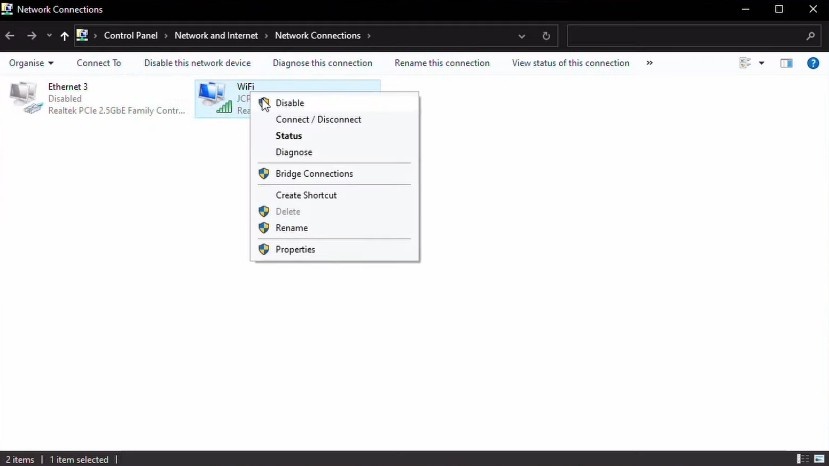
Disconnect network connections (Wi‑Fi and Ethernet) so Windows does not auto-install drivers. Do not disable Bluetooth if you use a Bluetooth keyboard or mouse.
Extract and launch DDU from a local drive (e.g. Desktop or C:\DDU). Do not run from a network drive.
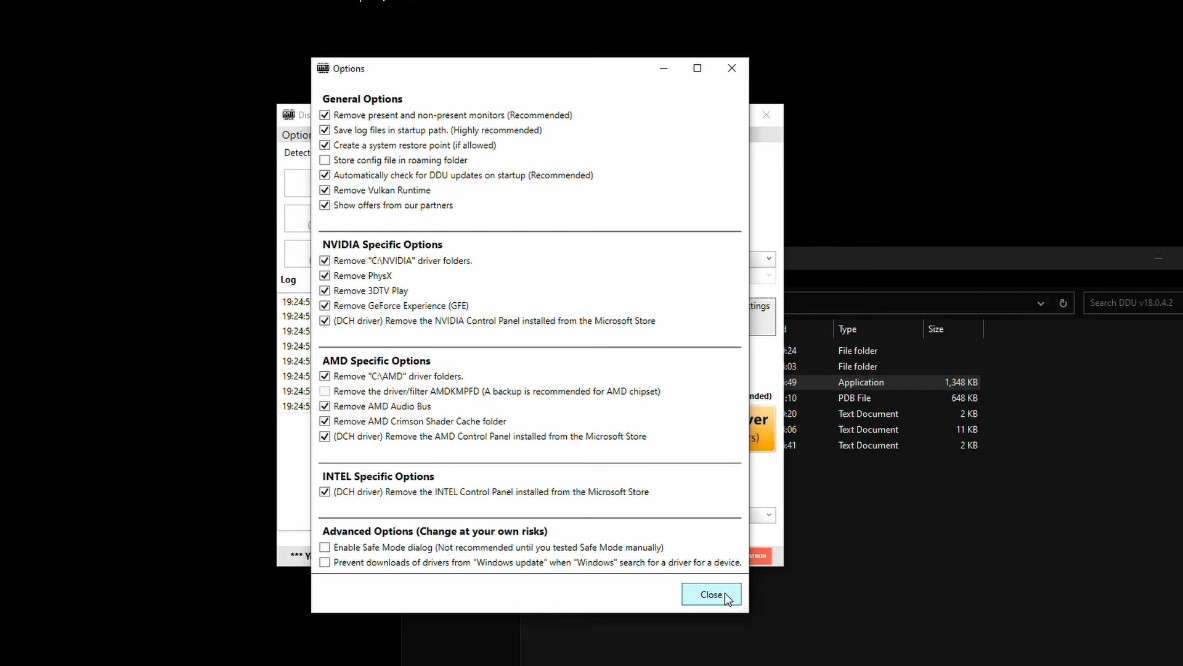
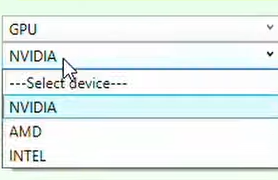
Select device and cleanup option. Choose device type (GPU), select vendor (NVIDIA, AMD, or Intel), then choose Clean and restart (typical) or Clean and shutdown (if swapping GPU).
After restart (or after powering on following shutdown), boot in normal mode and install the new driver you downloaded. Keep the internet disconnected until the driver install completes.
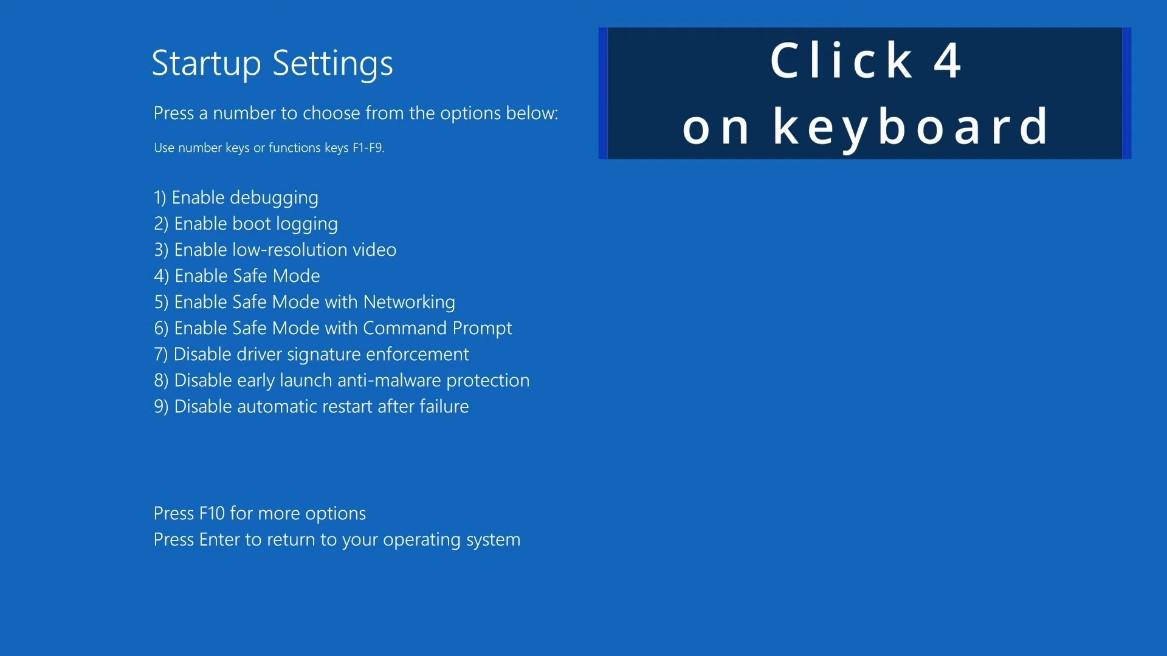
When the blue menu appears: Troubleshoot → Advanced options → Startup Settings → Restart.
After the PC restarts, press 4 (or F4) for Enable Safe Mode.
3. Install graphics drivers after using DDU
Keep the internet off until the driver installation finishes, so Windows Update does not push a different driver.
After cleanup, low resolution is normal until you install the new driver.
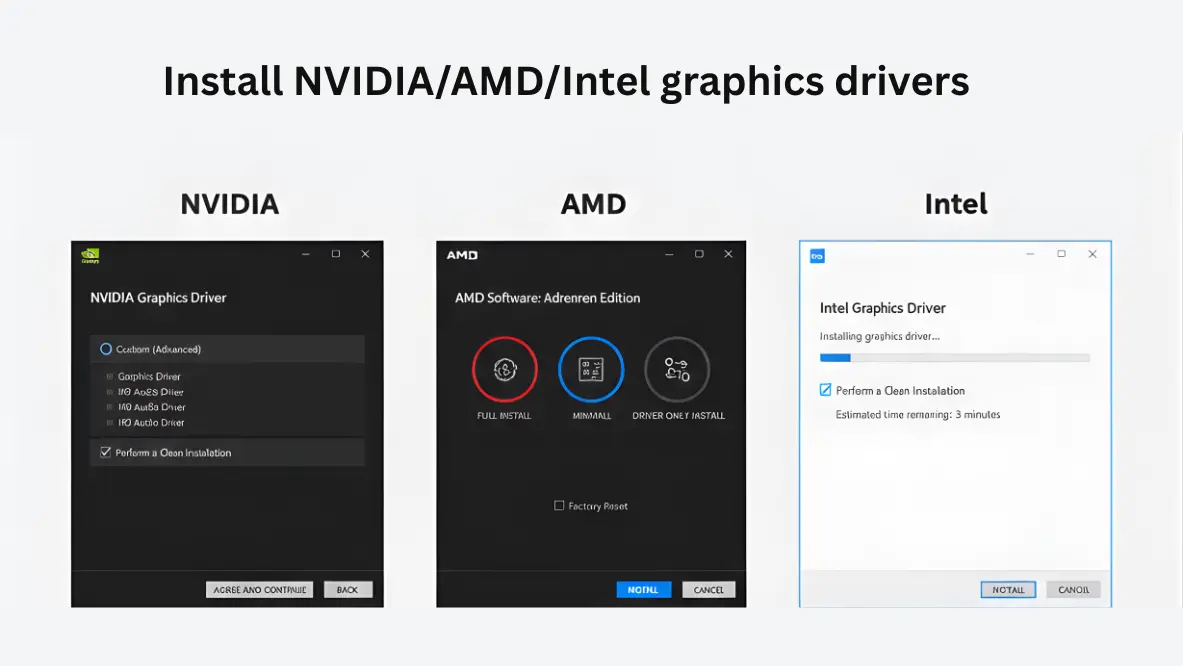
Run the driver installer you downloaded earlier (NVIDIA/AMD/Intel). Restart when prompted.
4. Switching GPU brands (AMD ↔ NVIDIA)
When changing from one vendor to another on the same Windows install, remove both driver sets to avoid conflicts.
Download the new vendor's driver in advance; do not install yet.
Disconnect internet and boot into Safe Mode.
Run DDU, select the current GPU vendor, choose Clean and do NOT restart. After cleanup, switch the dropdown to the other vendor and run cleanup again (or use Clean and shutdown if you are removing the current card next).
If you are physically swapping the card: use Clean and shutdown, then power off, swap the GPU, power on, and install the new driver.
5. Fix: driver install failed / error codes
Many "driver install failed" or error codes are caused by leftover files and registry entries from previous installs or incomplete uninstalls. DDU removes those leftovers so the new driver can install on a clean system. Follow the recommended workflow (Safe Mode, disconnect internet, then install the driver manually).
6. Fix: black screen during cleanup
A temporary black screen while DDU is removing the active GPU driver is normal. The display may go black for a few seconds to a few minutes because the graphics driver is being unloaded. Wait for the process to finish; the PC will restart (or shut down) when done. Do not force power off unless the system is unresponsive for an unusually long time.
7. Windows Safe Mode login (PIN / Windows Hello)
Safe Mode may not support PIN or Windows Hello. Before entering Safe Mode, enable password sign-in (Microsoft account password) and sign in at least once with that password in normal mode. Then when you boot into Safe Mode, use the same password to log in.
8. BitLocker note
If your drive is protected by BitLocker, have your recovery key available before rebooting. In some cases Windows may ask for the key after a restart; having it ready avoids being locked out.
Common problems & best practices
Always create a system restore point (or backup) before using DDU.
Run DDU from a local drive, not a network or USB if the USB is slow or locked during Safe Mode.
If you must use Normal Mode, close all other apps and run DDU twice (clean and restart, then clean and restart again) for better results.
Antivirus warnings
DDU can be flagged by some security products because it modifies drivers and registry. To avoid interruptions:
Exclude the DDU folder from real-time scanning.
Verify checksums (e.g. SHA-256) when the developer publishes them.
Download only from the official source or trusted mirrors.
Frequently Asked Questions
Common questions about Display Driver Uninstaller (DDU), safety, usage, and compatibility.
Display Driver Uninstaller (DDU) is a Windows utility that completely removes AMD, NVIDIA, and Intel graphics drivers and their leftovers (registry keys, driver store, files and folders). Use it when the standard uninstall fails, when switching GPU brands (e.g. AMD to NVIDIA), or when troubleshooting driver install failures, crashes, black screens, or performance issues caused by corrupted or conflicting driver remnants. After using DDU you must reinstall your driver manually.
Yes. DDU is safe when used as intended: for removing graphics drivers and leftovers. Use it in Safe Mode (strongly recommended), create a system restore point before running it, and follow the recommended workflow. Download only from the official source or trusted mirrors and verify checksums when available.
When used in Safe Mode and according to the recommended steps, DDU does not damage Windows. It only removes driver-related components. Creating a restore point before use lets you revert if anything goes wrong. Use at your own risk and follow the guides.
Safe Mode is strongly recommended for the most reliable cleanup. In Normal Mode, active driver services can interfere; if you use Normal Mode, close all other applications and run DDU twice (clean and restart, then clean and restart again) for better results.
Windows (especially Windows 10/11) can automatically download and install drivers via Windows Update. Disconnecting Wi‑Fi and Ethernet prevents this so that after DDU cleans your system, you install the driver you chose (from NVIDIA, AMD, or Intel) instead of whatever Windows pushes. Reconnect after your driver install is complete.
No. You do not need to uninstall the driver before using DDU. DDU will remove the driver and leftovers. Just download the new driver in advance (do not install it yet), then run DDU and install the new driver after cleanup.
Tools that modify drivers and registry are sometimes flagged by heuristics or behavior-based detection. DDU is not malware. To avoid false positives: download from the official source (Wagnardsoft) or trusted mirrors, verify the file with the published checksum (e.g. SHA-256), and add an exclusion for the DDU folder in your security software.
No. DDU only removes drivers and leftovers. After cleanup you must manually download and install the driver you want from NVIDIA, AMD, or Intel (or your OEM if required).
Yes. You can run DDU more than once. This is useful if you have multiple GPUs (clean each vendor separately), if a previous cleanup was incomplete, or if remnants are still causing issues. Always use Safe Mode when possible.
Yes, when those issues are caused by corrupted or conflicting graphics drivers. DDU removes the old driver and leftovers so you can do a clean install. It does not fix hardware faults or non-driver-related problems.
Yes. DDU supports Windows 7 through Windows 11, including Windows 11 24H2. Use the latest DDU version for the best compatibility with current Windows and driver behavior.
No. DDU is a Windows-only utility. Linux and macOS use different driver architectures and management; DDU is not available or supported on those platforms.
Yes. DDU removes vendor-specific settings and profiles (e.g. from the NVIDIA or AMD control panel). After a clean install you may need to reconfigure options such as refresh rate, color settings, SLI/CrossFire, or other custom preferences.
Some laptops and OEM systems use custom GPU hardware IDs and may require drivers from the manufacturer (Dell, HP, Lenovo, etc.) instead of the generic NVIDIA/AMD/Intel package. Check your OEM support site; if they provide a graphics driver, use that one after DDU. For most systems, the vendor's standard driver is fine.
DDU includes basic support for cleaning Realtek audio drivers where applicable. This is secondary to the main GPU focus. Use it only when you need to remove Realtek audio leftovers in line with the tool's options.
DDU is developed by Wagnard (Wagnardsoft). It is not affiliated with AMD, NVIDIA, or Intel. Those companies did not create, endorse, or have any responsibility for this tool. Use at your own risk.
Trust & Security
Display Driver Uninstaller (DDU) is a legitimate Windows utility for troubleshooting and clean driver installs. This page explains its intended use, transparency, and your responsibility when using it.
Legal and Legitimate Use
DDU is a safe, legitimate troubleshooting utility designed to completely remove graphics drivers (AMD, NVIDIA, Intel) and their leftovers from Windows. It is used for:
Fixing driver install failures and error codes
Resolving crashes, black screens, or performance issues caused by driver conflicts
Switching GPU brands on the same Windows installation
Preparing for a clean driver install when standard uninstall methods fail
It is not intended for circumventing licensing, bypassing security, or any unlawful purpose. Use it only for troubleshooting and clean driver management on systems you own or are authorized to manage.
Ethical Usage
DDU is meant for ethical, responsible use: removing driver remnants to restore system stability and enable a clean driver install. Users should create a system restore point or backup before use, run the tool in Safe Mode when possible, and obtain the software only from the official developer (Wagnardsoft) or trusted mirrors. Do not use modified or unofficial builds from unknown sources.
Transparency
What DDU does: It performs a deep cleanup of graphics (and optionally basic Realtek audio) driver components: registry keys, driver store entries, folders, files, and vendor-specific services or profile data. The result is a system without those driver remnants, similar to a fresh Windows install from a driver perspective.
What DDU does not do: It does not install malware, collect personal data, or modify unrelated parts of Windows. It does not install new drivers—you must do that manually after cleanup.
Trust is maintained by using the official source, verifying file integrity (checksums such as SHA-256) when the developer provides them, and relying on the tool's long-standing community trust among gamers, technicians, and power users.
No Malware
DDU is not malware. It does not steal data, show ads, or install unwanted software. Some antivirus products may flag it because it modifies drivers and registry; such detections are typically false positives. Always download from the official Wagnardsoft site or trusted mirrors and verify checksums when published.
Vendor Non-Affiliation
NVIDIA, AMD, and Intel did not have anything to do with this tool. DDU is developed independently by Wagnard (Wagnardsoft). The GPU vendors should not be held responsible for anything that may go wrong when using DDU. This is a third-party utility, not official vendor software.
User Responsibility Disclaimer
Use of Display Driver Uninstaller is at your own risk. By using the tool you accept responsibility for the results. We strongly recommend:
Creating a system restore point or full backup before running DDU
Running DDU in Safe Mode for maximum stability
Following the usage guides and only using DDU for troubleshooting and clean graphics driver installs
This website provides informational and download guidance only. The original developer is Wagnard (Wagnardsoft). We are not liable for any damage or loss arising from the use of DDU or the information on this site.